The article has been updated successfully.

There are 2 steps to configuring Holdem Manager to work with Boss Media:
- Setup Boss Media Hand History Options
- Setup Holdem Manager Auto Import Folders
- Boss Media Sit-N-Go Information
Once the above steps have been successfully completed, your HUD will be operational.
Setup Boss Media Hand History Options
Note: Always make sure you have the latest version of Holdem Manager before proceeding!
Holdem Manager 2 Update
- Launch Boss Media. Make sure you have installed in English when available.
- Boss Media automatically saves your Hand Histories to your hard drive. We need to find those Hand Histories.
- Play a couple hands of low stakes cash games.
- Look for the Hand History text files on your hard drive. Note the folder where you see Hand History files
- Vista/Win7: C:\Users\USER\AppData\Local\Boss Media\MyPokerSite\npp\logs
- XP: C:\Documents and Settings\user\Local Settings\Application Data\Boss Media\Casino\Casinoname\history\
Note: This folder may have a permission of "Hidden Files". (Click Here) for information about unhiding files and folders on your computer.
Note: The Boss software recently updated and changed the paths to the above paths. If you are still using the old software the paths are the ones below:
- Vista/Win7: C:\Users\USER\AppData\Local\Boss Media\Poker\Client
Now we're ready to tell Holdem Manager where these Hand Histories are. (Click Here)
Boss Media Sit-N-Go Information
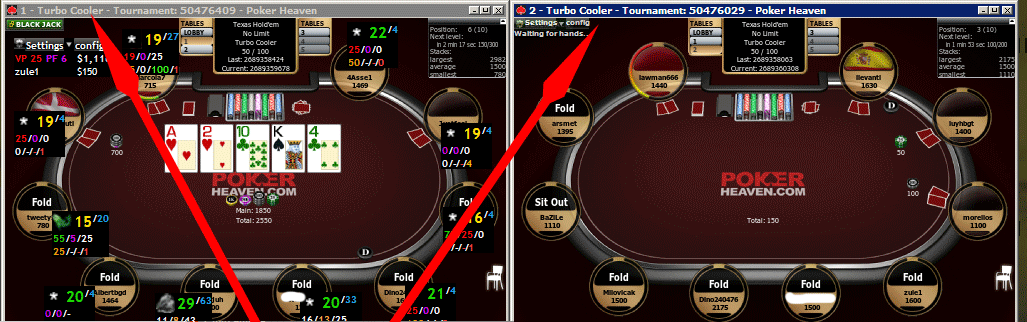
Only 1 table is supported for Boss SNG's. MTT's are not supported. In order to use the HUD on a single SNG table, Table Finder must be utilized.
Different types of SNG's will support more than a single HUD. (DON & Regular SNG as an example.) But we only officially support a single HUD due to not being able to recognize new tournament windows. All tracking software has this limitation on BOSS.