The article has been updated successfully.

Holdem Manager requires PostgreSQL to be installed and running for Database queries.
If any of the following software products are installed on your PC please read the directions on how to solve security conflicts with PostgreSQL and/or Holdem Manager. If this still does not fix the issue try completely uninstalling these products as simply disabling them may not resolve any conflicts.
General Firewall Troubleshooting
Norton 360
Norton Internet Security
Kaspersky Internet Security
F-Secure
Avira Internet Security
McAfee Internet Security
McAfee Special Notes
McAfee with McAfee SystemGuards
Outpost Firewall Pro
Microsoft Security Essentials
General Firewall Troubleshooting
Most firewalls provide the ability to grant certain programs varying levels of Internet access called exceptions. Exceptions deviate from “general” firewall rules. Do this by configuring the firewall and locating a section called “Program Control”, “Process Control”, “Application Control” or something along those lines.
For registration issues or problems with Holdem Manager connecting to the PostgreSQL database, it is imperative to allow FULL Internet access for the following five processes:
- C:\Program Files\Holdem Manager 2\HoldemManager.exe
- C:\Program Files\Holdem Manager 2\HudFuncsApp.exe
- C:\Program Files\Holdem Manager 2\HMUpdate.exe (available only during an update)
- C:\Program Files\PostgreSQL\8.x\bin\pg_ctl.exe
- C:\Program Files\PostgreSQL\8.x\bin\postgres.exe
If you have a 64bit version of Windows then the files will instead be found in your C:\Program Files (x86)\ folder.
Add exceptions to the firewall to allow the five programs listed above FULL Internet access. Then restart the computer for the changes to take place.
If problems continue, please ask for help in the forums or email us via the 'Contact Support' link here.
Norton 360
To add exceptions for Norton 360 follow these steps.
1. Select "Settings"
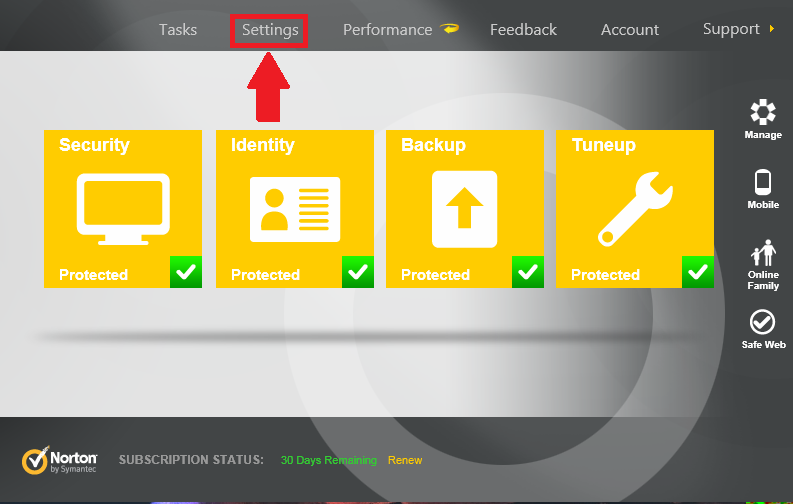
2. Select "Firewall"
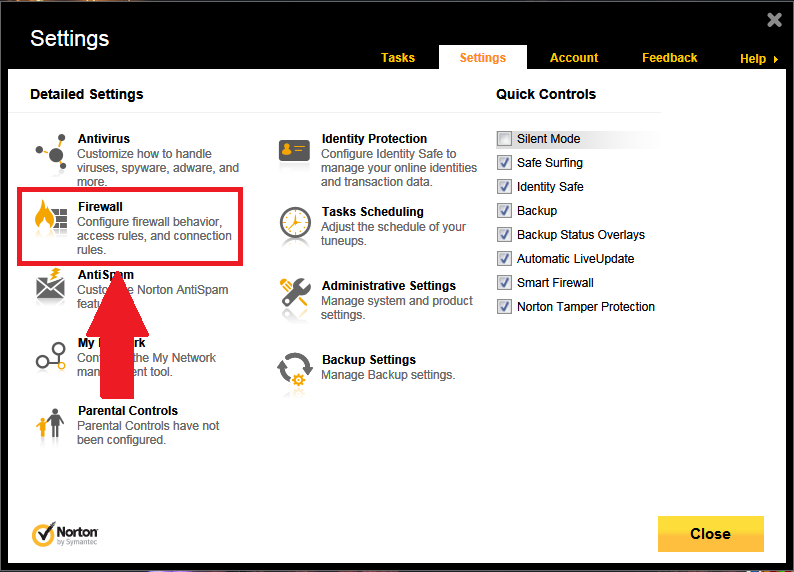
3. Select "Program Rules"
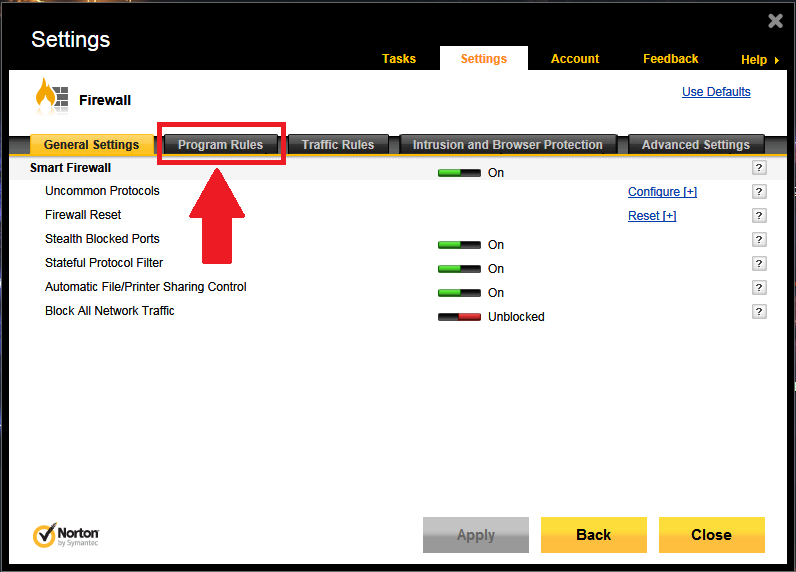
4. Select "Add"
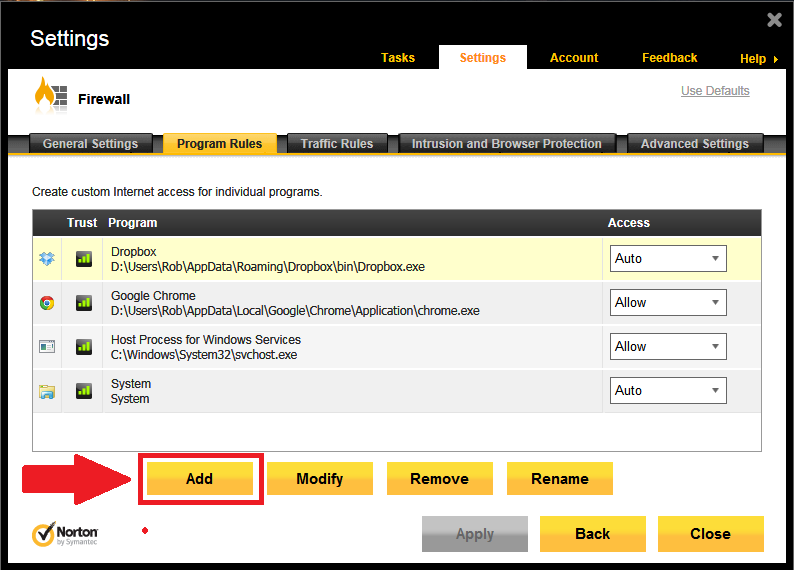
5. Browse to and add the following files to the exceptions.
C:\Program Files\Holdem Manager 2\HoldemManager.exe
C:\Program Files\Holdem Manager 2\HudFuncsApp.exe
C:\Program Files\Holdem Manager 2\HMUpdate.exe (available only during an update)
C:\Program Files\PostgreSQL\8.x\bin\pg_ctl.exe
C:\Program Files\PostgreSQL\8.x\bin\postgres.exe
If you have a 64bit version of Windows then the files will instead be found in your C:\Program Files (x86)\ folder.
When adding the files please ensure you select "Allow Always"
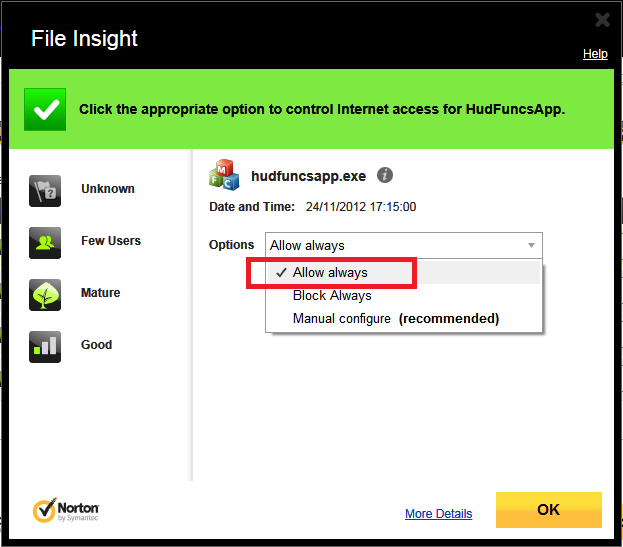
*Repeat this process for Auto-Protect, SONAR, and Download Intelligence Detection. Read how to do this here.
Norton Website: http://www.symantec.com/norton/index.jsp
Please direct all Norton related product questions to Norton’s technical support department which is located at http://www.symantec.com/norton/support/dtree.jsp?pvid=
Norton 360 also has a forum on the Norton website for users to discuss issues with one another: http://community.norton.com/norton/board?board.id=Norton_360
Norton Internet Security
To add exceptions for Norton Internet Security please follow these steps.
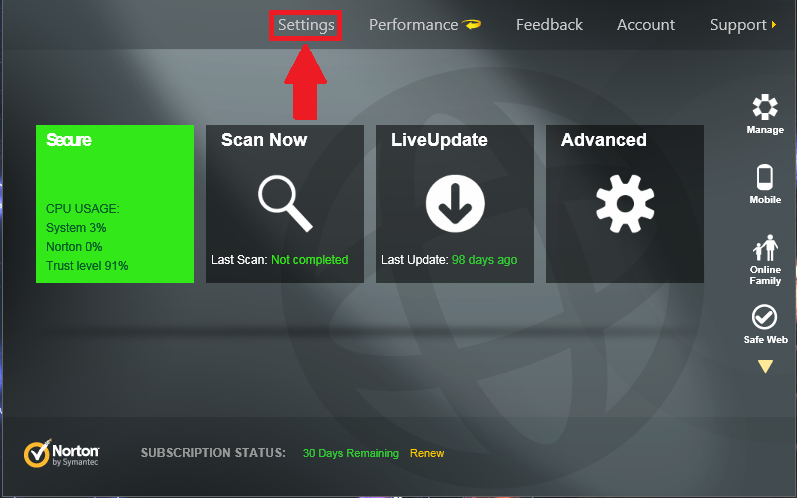
1. Select "Settings"
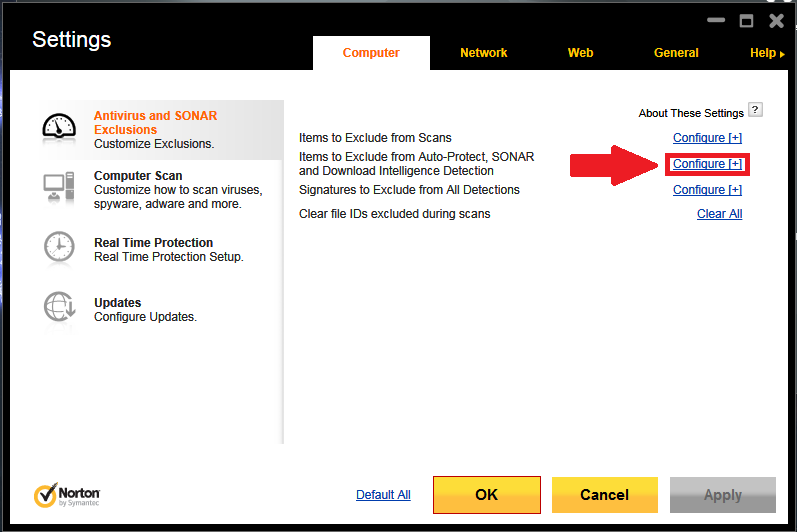
2. Select "Configure" next to the heading "Items to Exclude from Auto-Protect, SONAR and Download Intelligence Detection"
3. Select "Add"
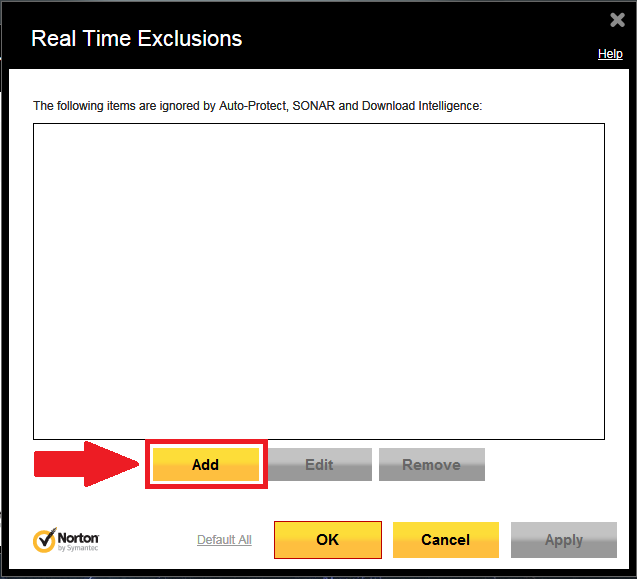
4. Select the folder icon
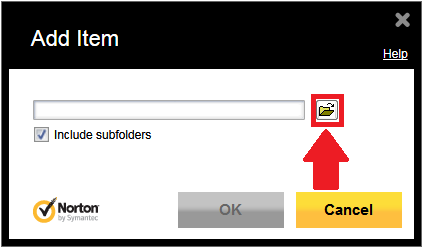
5. Browse to and add the following files to the exceptions.
C:\Program Files\Holdem Manager 2\HoldemManager.exe
C:\Program Files\Holdem Manager 2\HudFuncsApp.exe
C:\Program Files\Holdem Manager 2\HMUpdate.exe (available only during an update)
C:\Program Files\PostgreSQL\8.x\bin\pg_ctl.exe
C:\Program Files\PostgreSQL\8.x\bin\postgres.exe
If you have a 64bit version of Windows then the files will instead be found in your C:\Program Files (x86)\ folder.
*Repeat this process for the Firewall. Read how to do this here.
Norton Website: http://www.symantec.com/norton/index.jsp
Please direct all Norton related product questions to Norton’s technical support department which is located at http://www.symantec.com/norton/support/dtree.jsp?pvid=
Kaspersky Internet Security
To add exceptions for Kaspersky Internet Security please follow these steps.
1. Select "Settings"
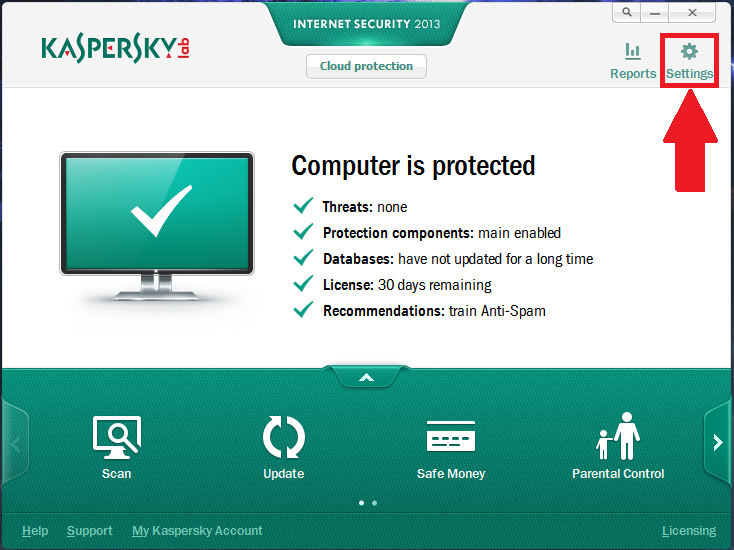
2. Select "Advanced Settings" via the box icon
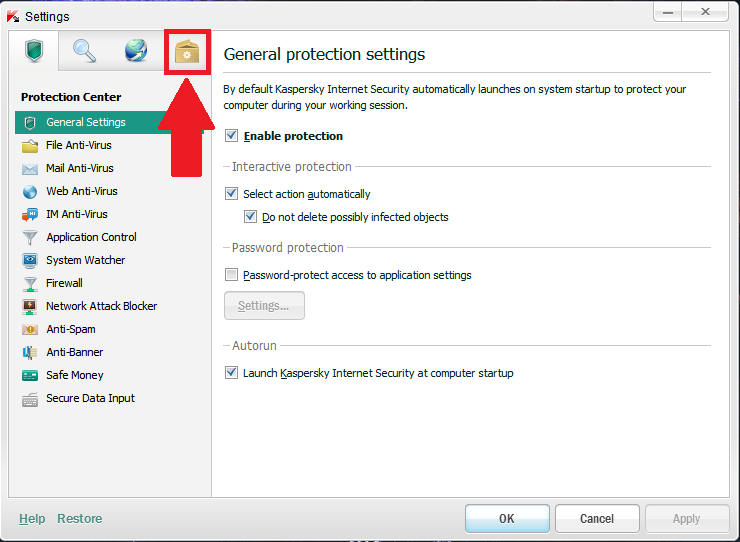
3. Under the "Threats and Exclusions" heading select "Settings" under "Exclusions"
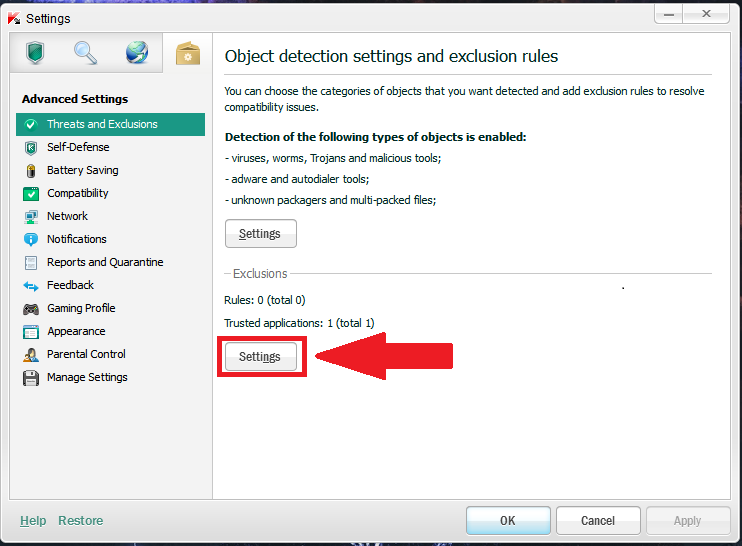
4. Select the "Trusted applications" tab
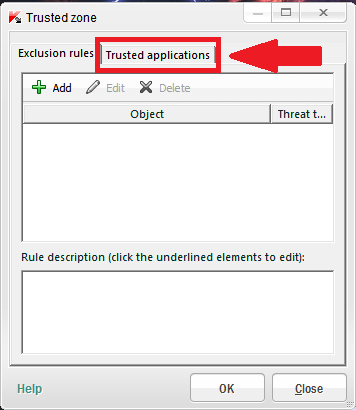
5. Select "Add"
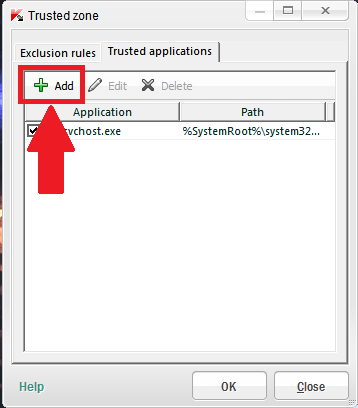
6. Browse to and add the following files to the exceptions.
C:\Program Files\Holdem Manager 2\HoldemManager.exe
C:\Program Files\Holdem Manager 2\HudFuncsApp.exe
C:\Program Files\Holdem Manager 2\HMUpdate.exe (available only during an update)
C:\Program Files\PostgreSQL\8.x\bin\pg_ctl.exe
C:\Program Files\PostgreSQL\8.x\bin\postgres.exe
If you have a 64bit version of Windows then the files will instead be found in your C:\Program Files (x86)\ folder.
Kaspersky Website: http://www.kaspersky.com
Please direct all Kaspersky related product questions to the Kaspersky technical support department located at http://www.kaspersky.com/support/.
F-Secure
F-Secure Website: http://www.f-secure.com
F-Secure can be named one of several things, including Charter Security Suite, Shaw Secure, Orange Firewall or an array of other names.
F-Secure as a software suite does not allow PostgreSQL to run as a service regardless of what exceptions are set. This is a known bug in the F-Secure software.
The only known workaround is to disable the F-Secure services temporarily in order to start PostgreSQL. In order to put this workaround into effect:
Windows XP
Click Start -> Run -> type "services.msc" and hit enter. Then continue to the steps listed under "All windows" located below.
Windows Vista / Windows 7
In Windows Vista or Windows 7, click Start. Type in "services" in the bottom. Services should appear in the search. Click on it. Please proceed to the steps listed under "All Windows" below.
All Windows
The Windows service manager should now be able to find the following five running services:
- F-Secure Anti-Virus Firewall Daemon
- F-Secure Automatic Update Agent
- F-Secure Management Agent
- F-Secure ORSP Client
- FSGKHS
The two relevant services are:
- F-Secure Management Agent
- FSGKHS
Highlight F-Secure Management Agent and stop the service. NOTE: Stop this service first! This controls other services as well! Then highlight FSGKHS > stop the service.
Now start up Holdem Manager which will automatically start PostgreSQL.
Please note that these services will be restarted when the computer reboots. In order to disable them permanently, right click on the service > click Properties > select Disabled (instead of Automatic or Manual) under Startup Type. Be aware though, that in this state F-Secure will not be able to adequately protect your computer.
For a more long term solution, we recommend uninstalling F-Secure. Then install a different anti-virus and firewall solution. There are many great options available to you.
Avast
Avira Internet Security
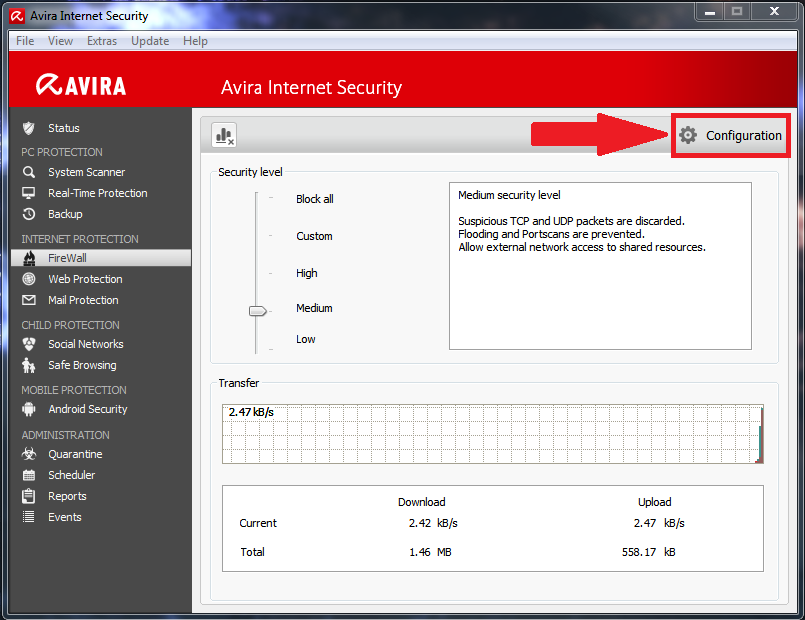
To add exceptions to Avira Internet Security please follow these steps.
1. Select "Firewall"
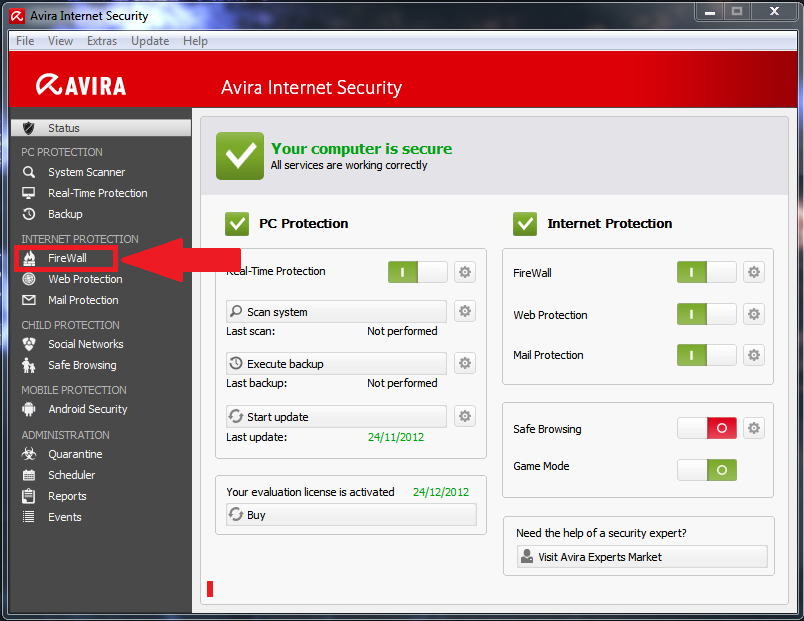
2. Select "Configuration"
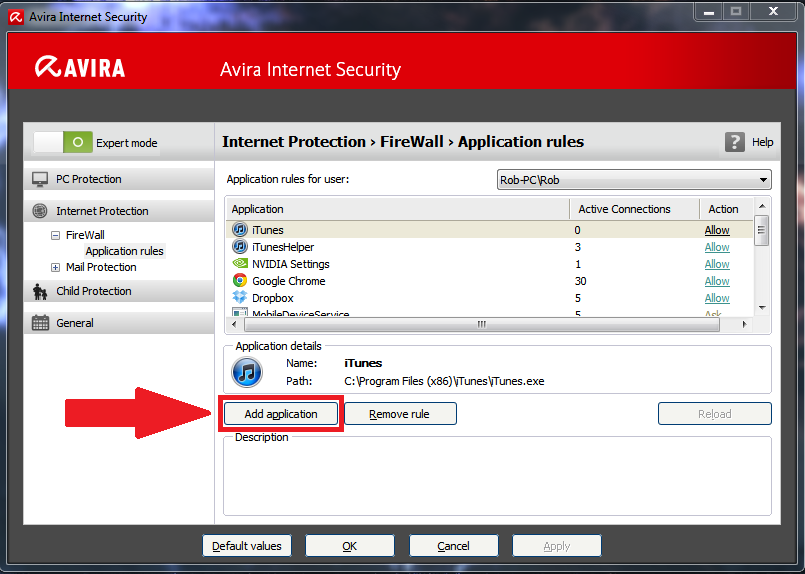
3. Select "Add application"
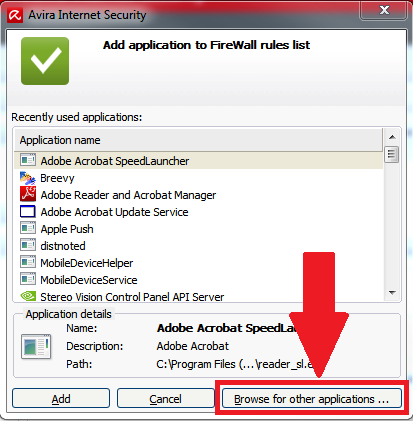
4. Browse to and add the following files to the exceptions.
C:\Program Files\Holdem Manager 2\HoldemManager.exe
C:\Program Files\Holdem Manager 2\HudFuncsApp.exe
C:\Program Files\Holdem Manager 2\HMUpdate.exe (available only during an update)
C:\Program Files\PostgreSQL\8.x\bin\pg_ctl.exe
C:\Program Files\PostgreSQL\8.x\bin\postgres.exe
If you have a 64bit version of Windows then the files will instead be found in your C:\Program Files (x86)\ folder.
Avira Website: http://www.avira.com
Avira antivirus has been known to occasionally and incorrectly detect Holdem Manager as a Trojan Horse virus. Please make sure that the anti-virus definitions are updated.
When receiving this alert after downloading Holdem Manager from the official Holdem Manager website, rest assured that this is a false-positive. Holdem Manager is completely clean. Please directly contact Avira to notify them of this false-positive alert at http://www.avira.com/en/support/.
McAfee Internet Security
To add exceptions for McAfee Internet Security please follow these steps.
1. Select "Web and Email Protection"
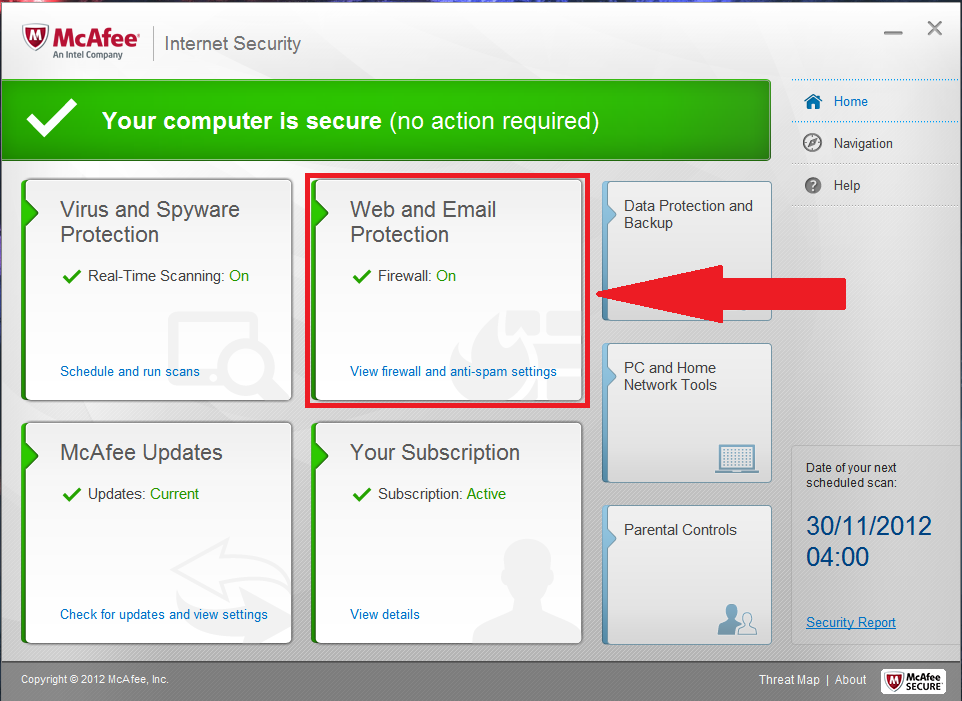
2. Select "Firewall"
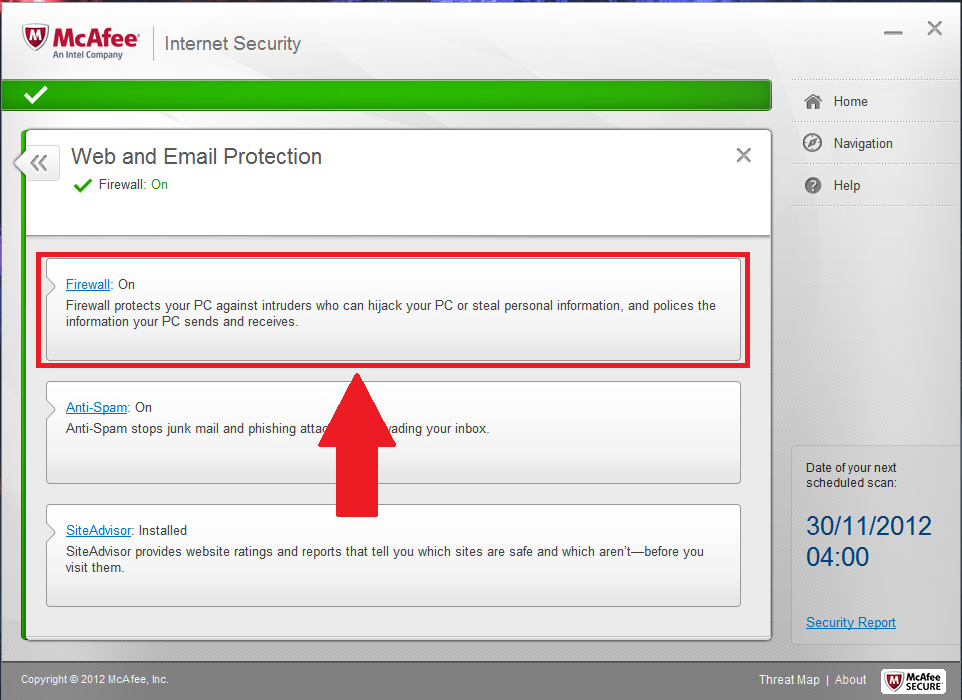
3. Select "Internet Connections for Programs"
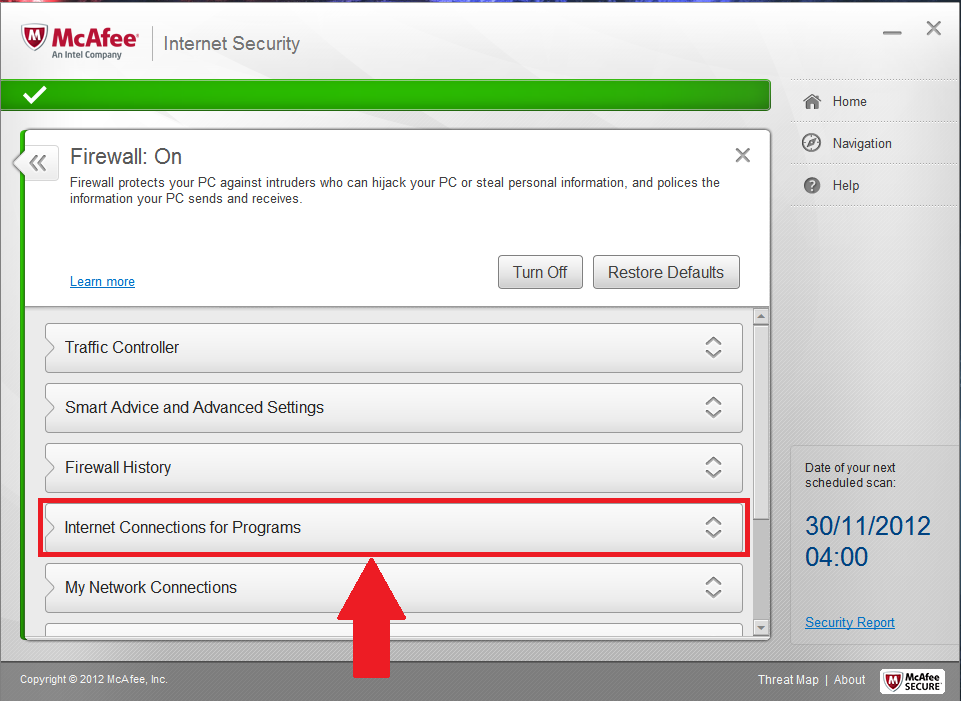
4. Select "Add"
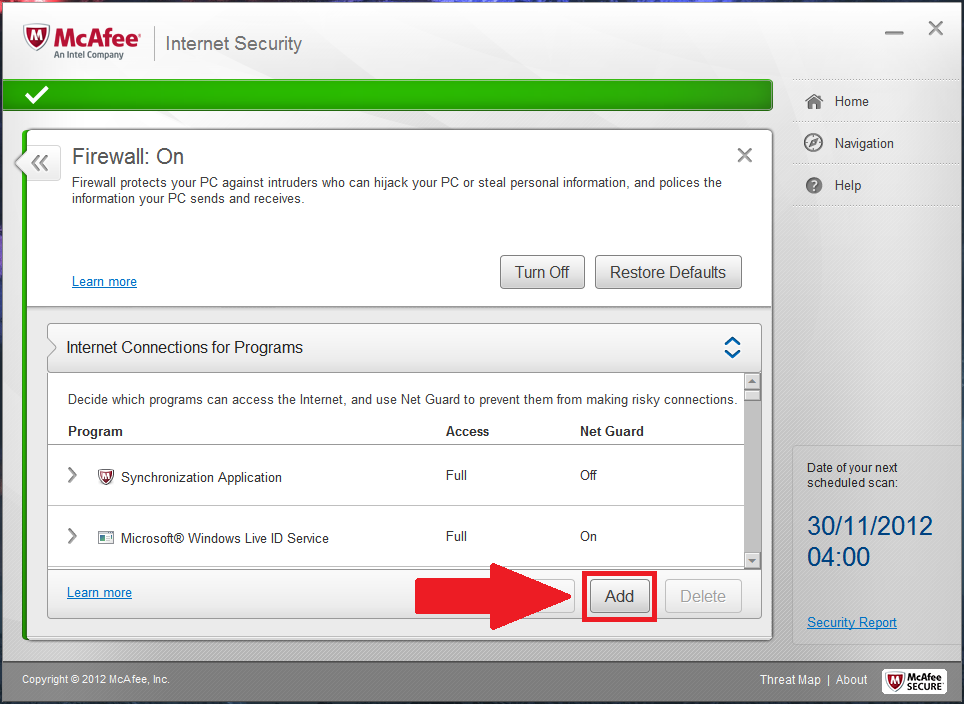
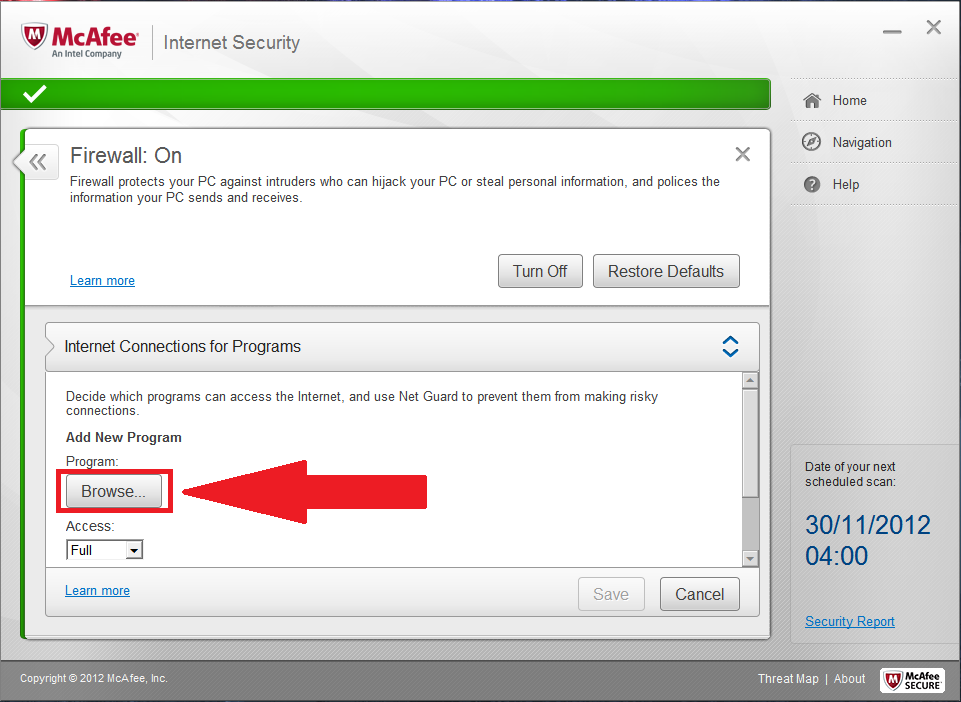
5. Browse to and add the following files to the exceptions.
C:\Program Files\Holdem Manager 2\HoldemManager.exe
C:\Program Files\Holdem Manager 2\HudFuncsApp.exe
C:\Program Files\Holdem Manager 2\HMUpdate.exe (available only during an update)
C:\Program Files\PostgreSQL\8.x\bin\pg_ctl.exe
C:\Program Files\PostgreSQL\8.x\bin\postgres.exe
If you have a 64bit version of Windows then the files will instead be found in your C:\Program Files (x86)\ folder.
McAfee Website: http://www.mcafee.com
Several different McAfee products contain SystemGuards which may also cause problems with installation PostgreSQL. If SystemGuards is installed and there are issues installing PostgreSQL, please proceed to the next section titled McAfee with McAfee SystemGuards.
Please direct all McAfee related product questions to McAfee’s technical support department located at http://www.mcafee.com/us/support/index.html.
McAfee Special Notes:
Sometimes Mcafee must be completely removed to fix a postgres connection issue or HM2 licensing problem. Unistalling through Windows Add/Remove Programs leaves McAfee files that must be removed from your system. To remove these files, use the McAfee Consumer Products Removal tool (MCPR). More details can be found on the McAfee site here: http://service.mcafee.com/FAQDocument.aspx?id=TS101331Download McAfee Consumer Products Removal tool: http://download.mcafee.com/products/licensed/cust_support_patches/MCPR.exe
McAfee with McAfee SystemGuards
McAfee Website: http://www.mcafee.com
Several different variations of McAfee products contains McAfee SystemGuards.
MacAfee SystemGuards may not allow PostgreSQL to install properly. Please disable SystemGuards during the installation of PostgreSQL. Once PostgreSQL is installed, reboot and re-enable SystemGuards. SystemGuards should not interfere with PostgreSQL once it is installed.
Please direct all McAfee related product questions to McAfee’s technical support department located at http://www.mcafee.com/us/support/index.html.
Outpost Firewall Pro
Outpost Firewall Pro Website: http://www.agnitum.com/products/outpost/
Open the firewall and click on Settings\General\Improvenet - it is advisable that "Automatically Create Rules for applications signed by trusted vendors" is ticked (this should ensure that Postgres is automatically picked up and automatically allowed). Otherwise see below.
For Holdem Manager, open the firewall then click on Settings/Application Rules and find HoldemManager.exe Click 'Edit' (or 'Add' if not already in the list and then find where the HEM executable is on your computer) and then add the following rules
Rule 1: Allow Outbound TCP to HTTP for HoldemManager.exe by ticking appropriate boxes (where protocol is TCP and direction is Outbound and remote port is HTTP - ALLOW)
Rule 2: Allow Outbound TCP to 5432 for HoldemManager .exe - ticked (where protocol is TCP and direction is OUTBOUND and remote address is 127.0.0.1 and remote port is 5432 - ALLOW)
Under the 'System Guard' Tab verify that Group/Internet Settings Action is set to 'ALLOW', then click 'APPLY' then close tab.
Go Back To Settings/Application Rules and find PSQL.exe in the list of applications and click 'Edit', then under the 'general tab' ensure that 'Allow All activity' is ticked. Click 'Apply' and close the the firewall's configuration interface.
Microsoft Security Essentials
Microsoft Security Essentials Website: http://windows.microsoft.com/en-us/windows/security-essentials-download
Microsoft Security Essentials is our preferred virus and malware protection software. It's free and it's the most light weight security software we've come across with outstanding protection.
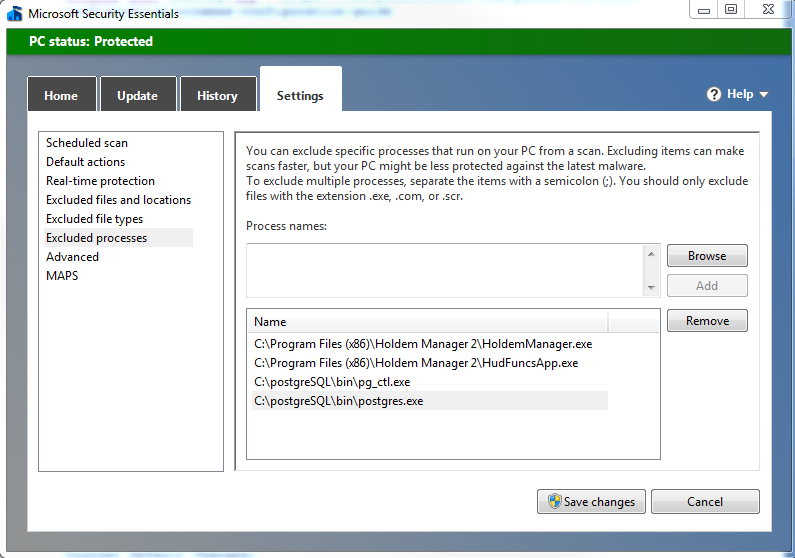
- Open Microsoft Security Essentials
- Click the Settings Tab
- Browse and add the following processes to the exclusion list: (C:\Program Files or C:\Program Files (x86)
- C:\Program Files\Holdem Manager 2\HoldemManager.exe
- C:\Program Files\Holdem Manager 2\HudFuncsApp.exe
- C:\Program Files\Holdem Manager 2\HMUpdate.exe (available only during an update)
- C:\Program Files\PostgreSQL\8.x\bin\pg_ctl.exe
- C:\Program Files\PostgreSQL\8.x\bin\postgres.exe
- Click "Save Changes".
You will notice in the screen below Postgres was installed to the root of the C:\ drive. If you don't have a default install like below, you will need to find the folder where these files are located and add them to the exception list.
WARNING: Do not add exceptions to the "Exclude File Types" menu item; this will make all .exe's on your computer vulnerable to virus's and hacking. We just want to add exceptions to the specific files we know are not viruses.
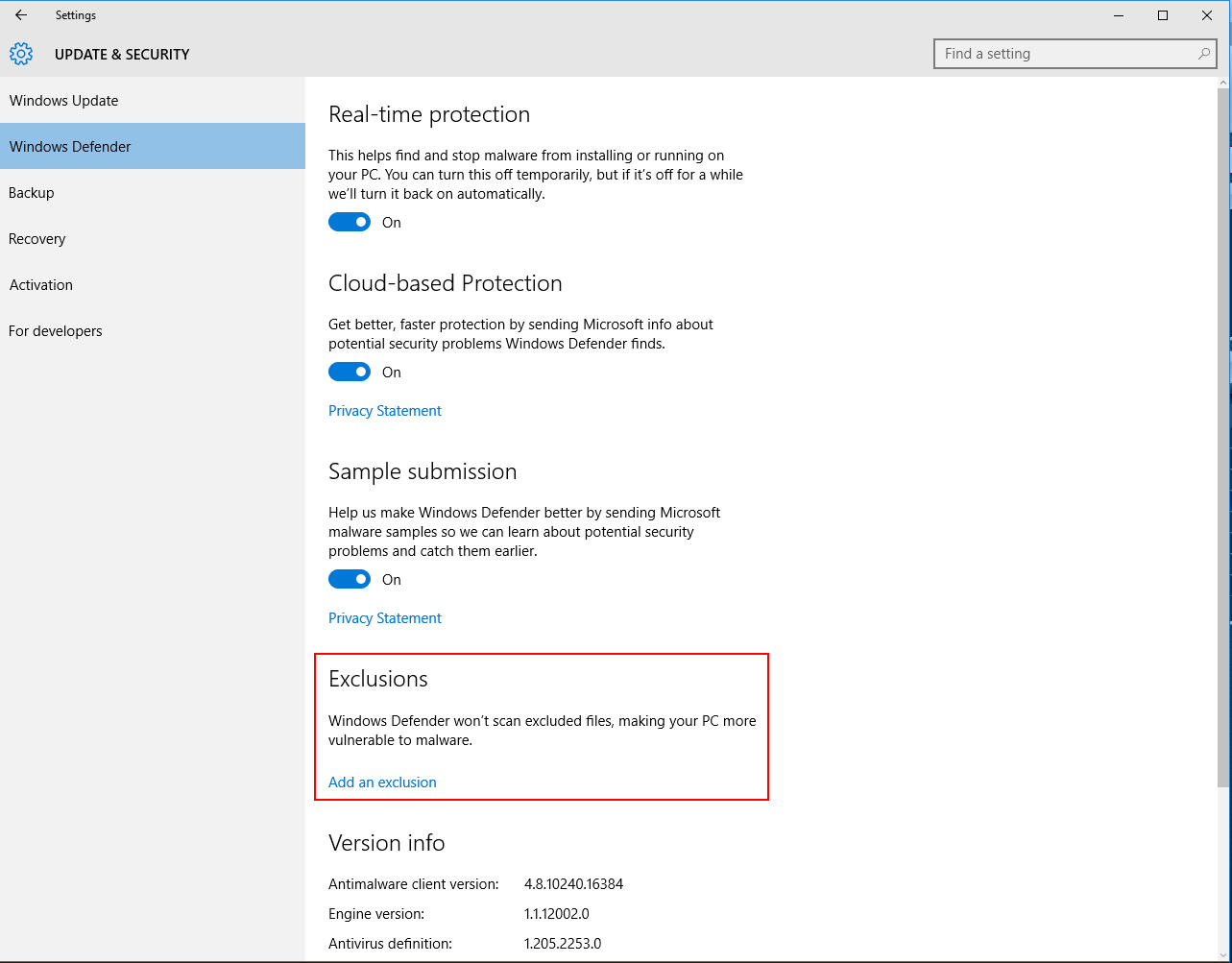
In Windows 8 and 10, This is called Windows Defender again. It's the same principles, but the Settings screen looks different: