


 The article has been updated successfully.


Click Here For Popup Stat Descriptions FAQ
How To Create Custom Popups:
1. Click 'New popup' to create a new custom popup.
2. Drag and Drop stats from the column on the left to the popup cells on the right.
3. Click on a popup cell to select that cell to modify in the popup.
4. Use the Modify buttons shown below to edit the cells to the desired modifications.
*Note* - It is best to test modifications in the Replayer. This way, there will be no distractions when playing live.
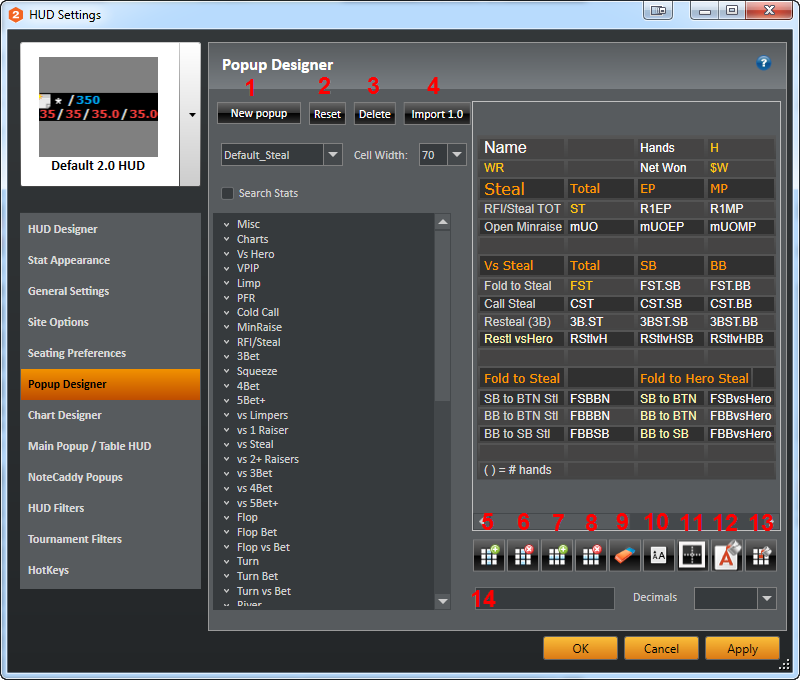
The Modify Buttons:
2. Reset - Reset all the popups to their default state
3. Delete - Delete a pop
4. Import 1.0 - Import a popup from Holdem Manager 1.0
5. Add Column - Adds a column to the popup
6. Del Column - Deletes the currently selected column
7. Add Row - Adds a row to the popup
8. Delete Row - Deletes currently selected row
9. Erase - Erase the contents of the cell
10. Edit Font - Edit the font of the cells
11. Border - Add a border to the cells to make the cell, column or row stand out more
12. Text Color - Change the color of the Popup text
13. Cell Background - Change the color of the cell background
14. Text Box - Adding text here will add text to the highlighted cell
Use the Decimals drop down to add decimals to the popup stats similar the feature in Stat Appearance.
How To delete a Popup:
1. Click 'Delete' button at the top of popup designer (#3 in picture).
2. Dialog will appear with a list of files in your popup folder.
3. Select a single popup file by clicking on it or select a group of popups to delete ( You can select a group of popups by left clicking on first popup you want to delete, then pressing and holding Shift key, and finally left clicking on last popup in the list you want to delete.)
4. Confirm selection of popups to delete by clicking on 'Open' button in the dialog. ( WARNING: You will permanently delete selected popups )
*Note: As of version 8338 HM2 will automatically create NoteCaddy popup backups during Coaching package import. To improve performance, please regularly remove unnecessary popup backups. For example: If you have CBet.pop in your package and import a new one HM2 will create CBet_1.pop and so on.
How To Create Popups that will look like HM2 default popups:
- Please use the values below when creating and editing your popup.
Popup example with Color values:

Background Colors:
Light #FF454444
Dark #FF303030
Border Color:
Cell Outline - #FFAEAEAE
Border Color:
Cell Outline - #FFAEAEAE
Text Colors:Stat name - #FFDCDCDC
Stat value - #FFFFFFFF
Top stats - #FFFFC90E
vsHero - #FFFEEFB9
Column - #FFFF9900
Fonts:
Stats - Arial 12
Columns - Verdana 12


